
Scora — Point Your Camera. Hear the Music.
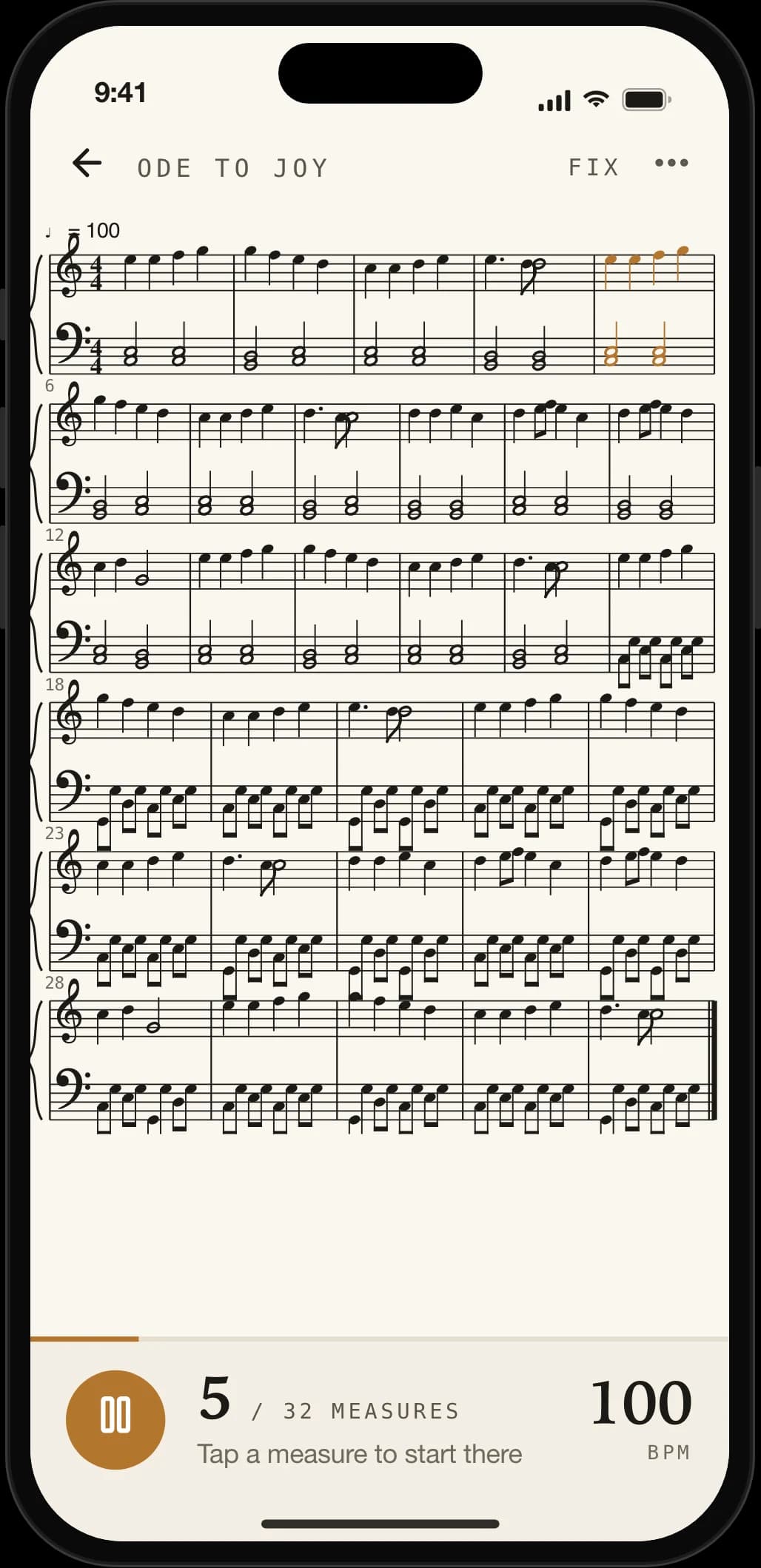
Scora reads printed sheet music and plays it back, so you can hear a piece before you can play it. When the scan gets a note wrong, tap it and fix it yourself — no re-photographing, no guessing.
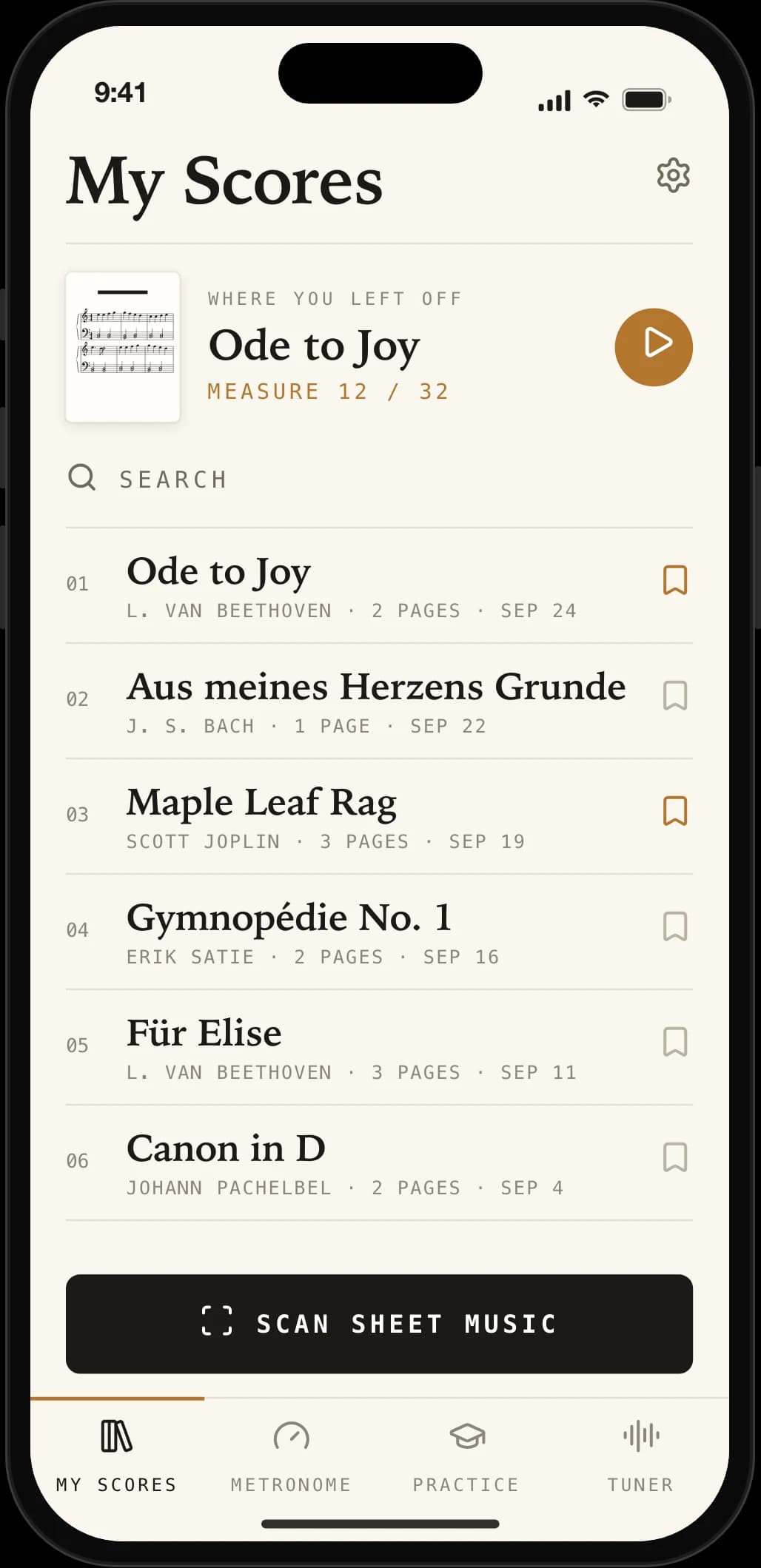
A Scanner You Can Practise With
Every scanner on the market misreads the odd note. Scora is the one that lets you correct it, then turns the page into a practice track: loop it, slow it, mute a hand, take it to your key.
Scan and Hear Any Printed Score
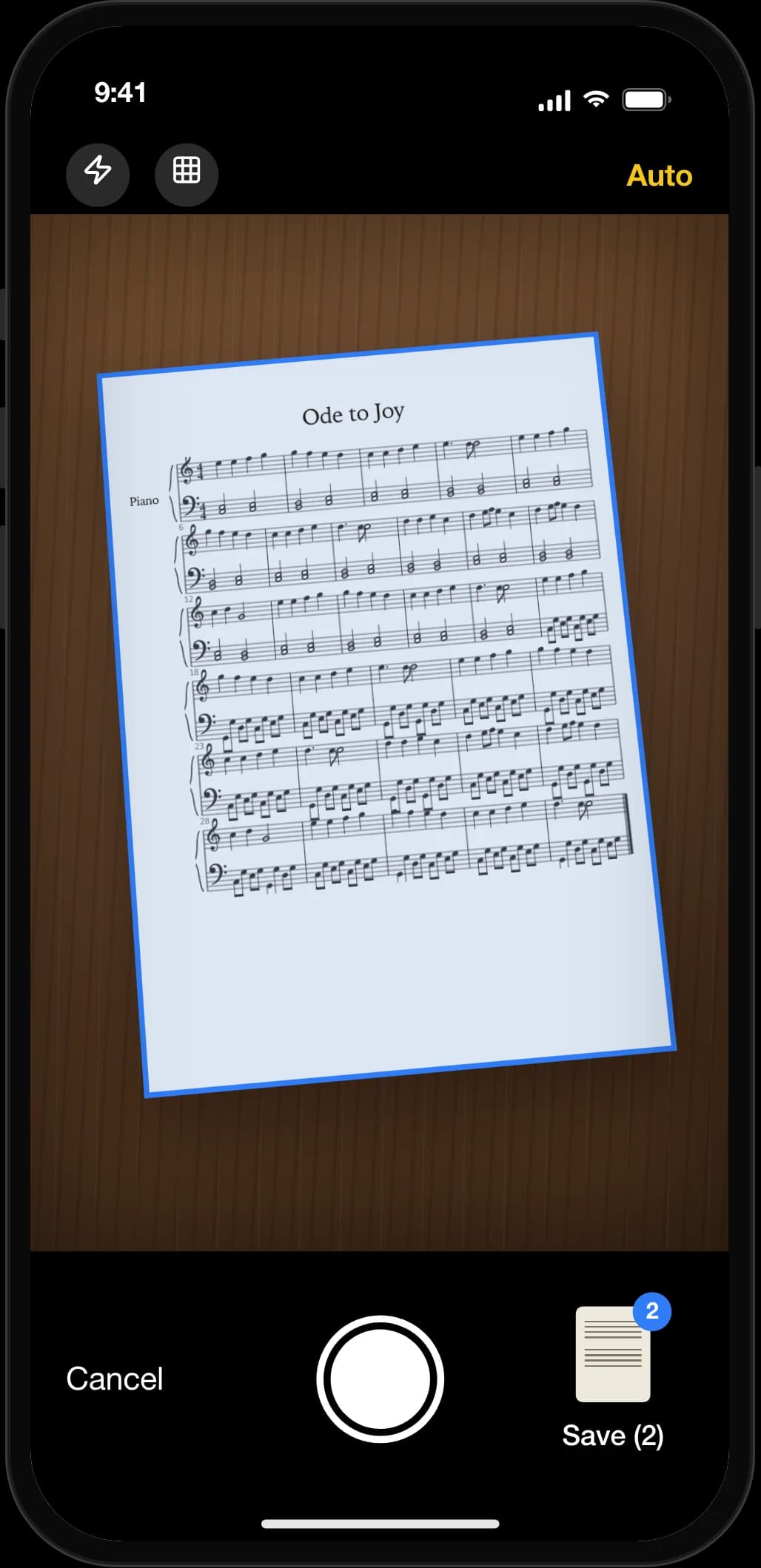
Point the camera at a page, or import a photo or PDF. Scora straightens and cleans the capture, reads the staves with a production-grade recognition engine, and plays the piece back with the notes highlighted as they sound.
Fix a Misread Note in Two Taps
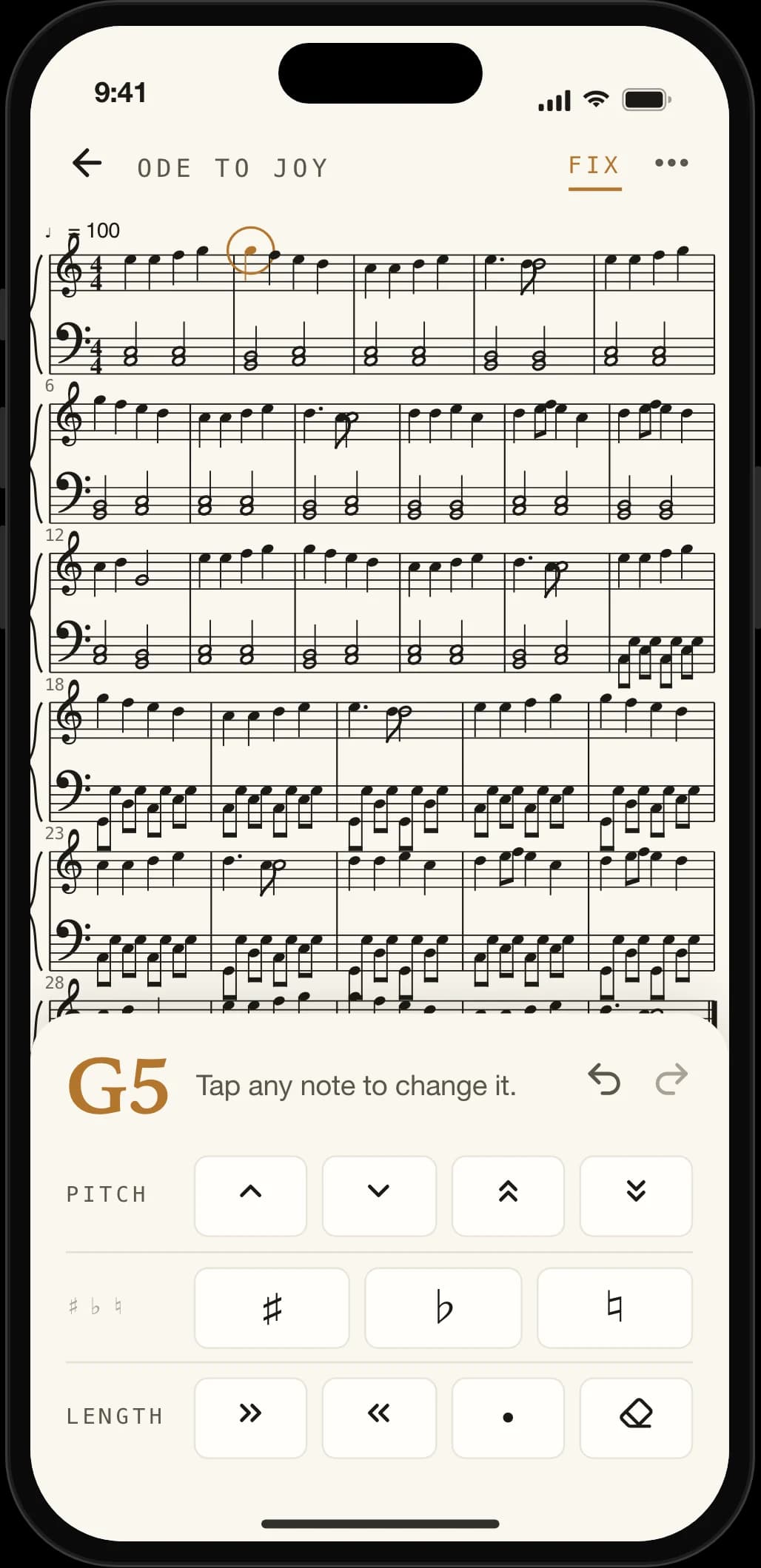
Tap a wrong note and nudge it up or down, change its length, add a sharp or flat, or turn it into a rest. Every edit plays back straight away, undo goes 50 steps deep, and the original scan is always one tap away.
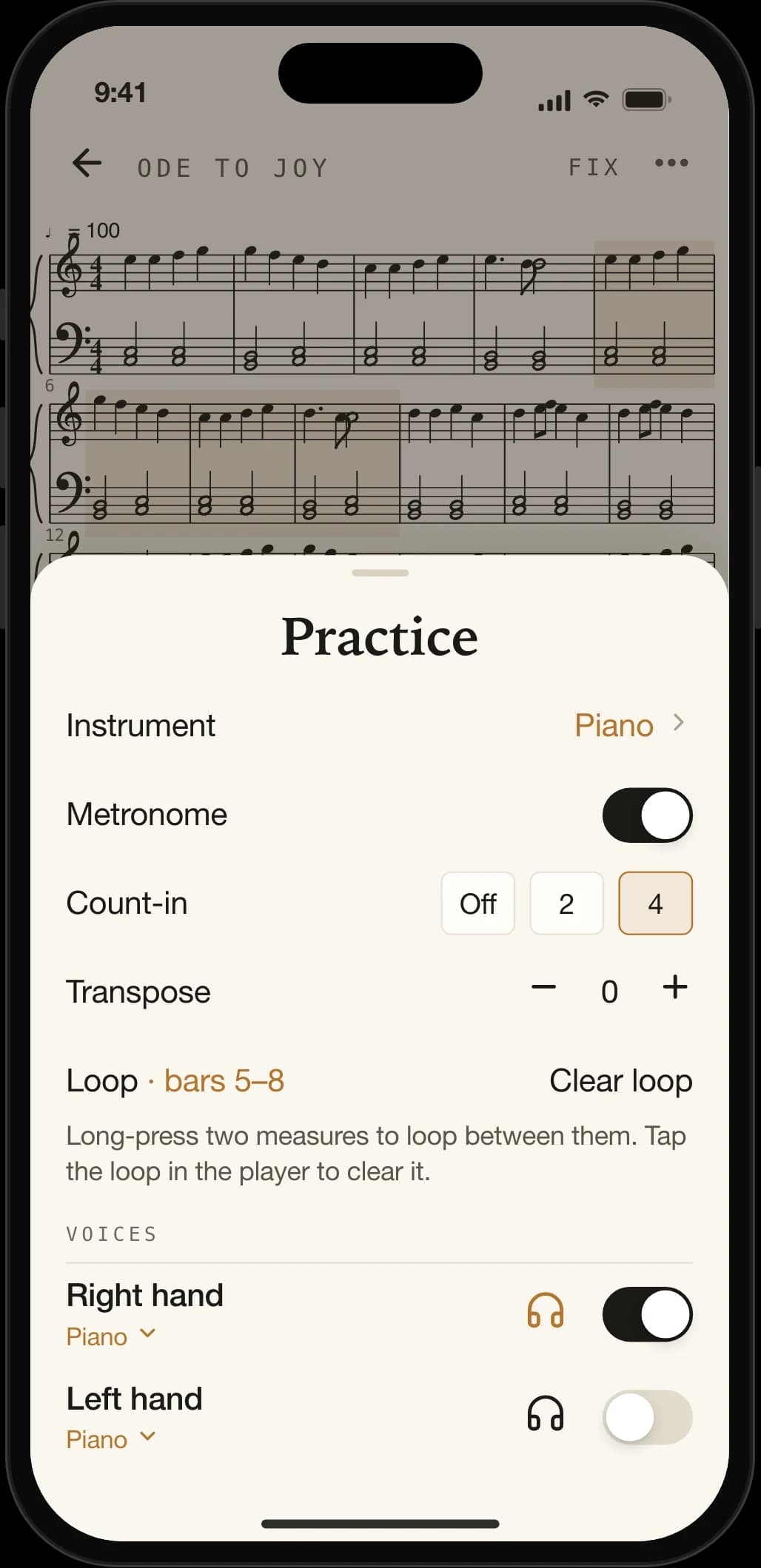
Loop the Hard Bar, Slow It Down
Long-press two measures to loop the passage between them, slide the tempo from 40 to 300 BPM, add a count-in and a metronome click — and drill the part you actually struggle with.
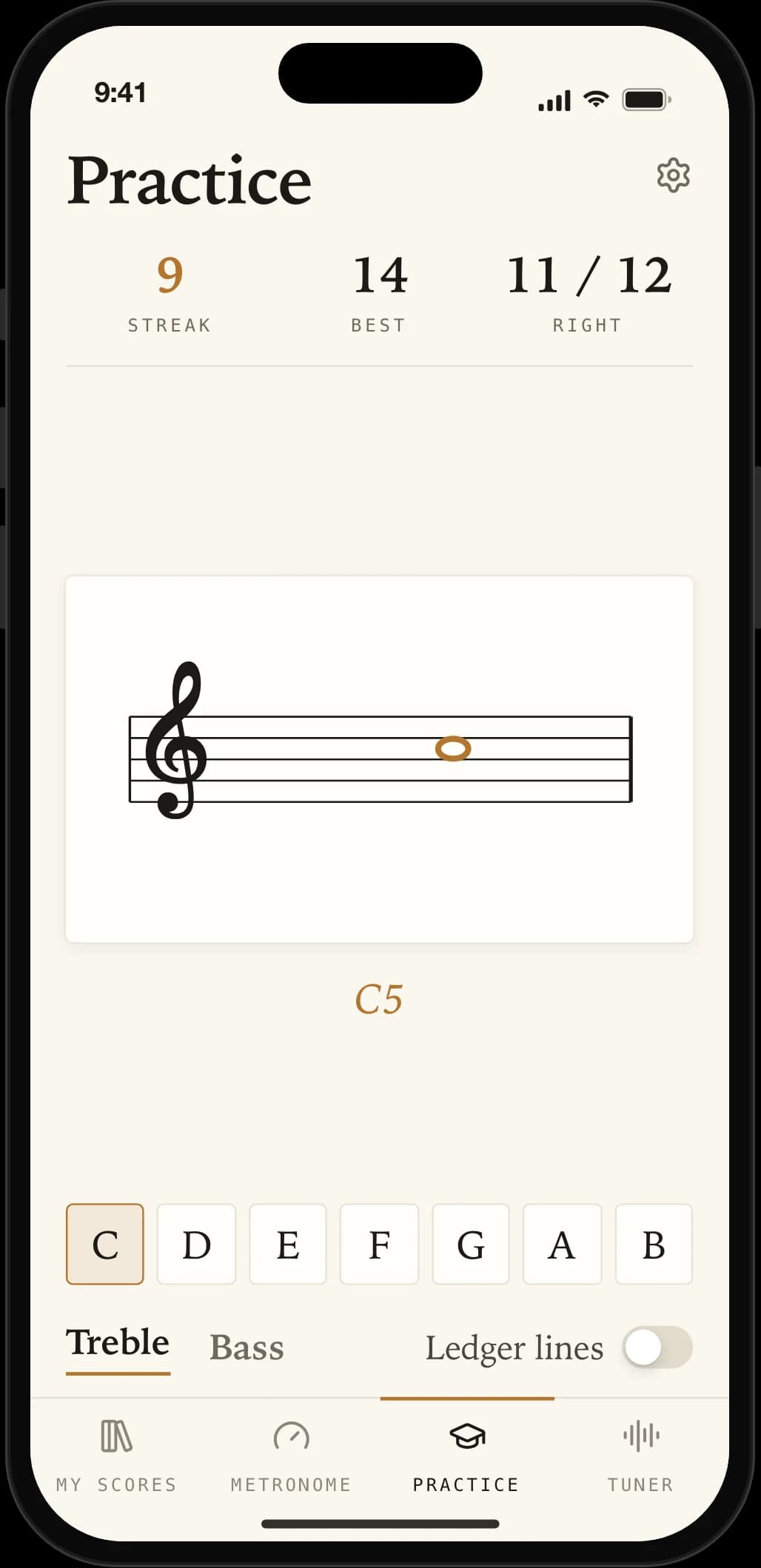
Tuner, Metronome and Note Trainer
Three tools that are useful on the days you are not scanning: a chromatic tuner that listens to your instrument, a metronome with accents, and a flashcard drill that makes you faster at reading the staff.
Hear Your Part Alone
Mute or solo any staff: listen to just the alto line, just the left hand, just the melody. Set a different instrument per part, from piano and strings to winds and choir.
Transpose and Retune
Move the whole score up or down by up to 12 semitones for your voice or instrument, and set the pitch standard to 415, 432, 440, 442 or 444 Hz.
Export MIDI, MusicXML, PDF and Audio
Share a practice track at the tempo, key and mutes you practised with, or hand the MusicXML to MuseScore, Sibelius or Finale. PDF exports come from the engraved score, not the photo.
Your Scores Stay on Your Device
No account, no cloud library. Scans are converted and deleted from the recognition service the moment the result is back, and are never used to train anything.
See Scora in Action
Scan, hear, fix, practise — a closer look at the screens you will use every week.
From Page to Playback in 3 Steps
- 1
Scan the Page
Use the built-in document scanner, pick a photo, or import a PDF. Add as many pages as the piece has; the order you scan is the order Scora reads.
- 2
Check and Fix
Confirm the instruments Scora detected, then press play. If a note sounds wrong, tap it in Fix mode and correct the pitch, length or accidental — the fix plays back immediately.
- 3
Practise and Export
Loop the tricky bars, slow the tempo, mute the other hand or voice, transpose to your key — then export MIDI, MusicXML, PDF or audio to share with your teacher or choir.
What kind of sheet music does Scora read?
Printed notation: piano, vocal and choir scores, band and orchestral parts, lead sheets with lyrics. Handwritten scores, guitar tablature and chord-only charts are not supported. Clean, well-lit pages give the best results; Scora warns you before uploading a blurry page.
What happens when a note is read wrong?
Open Fix mode, tap the note and correct it: move it by a semitone or an octave, change its duration, add or remove an accidental, or make it a rest. Scora keeps the measure arithmetically valid, plays the corrected bar straight away and keeps the original scan so you can always revert.
Can I hear only my part?
Yes. Each staff has mute and solo buttons and its own instrument, so a choir singer can isolate the alto line and a pianist can practise one hand while hearing the other.
Which formats can I export?
MIDI, MusicXML, PDF of the engraved score, an audio file rendered at your tempo, key and mutes, and a PDF of the original captured pages. Everything goes through the system share sheet, so Files, Mail, AirDrop and messaging apps all work.
Is Scora free?
The metronome, tuner, note trainer and a sample score with every feature are free. Scanning and exporting are part of Scora Pro, which includes a fair-use page allowance each period — most pieces are two to six pages.
Where do my scans go?
Page images are sent through our own server to a recognition service that converts them to MusicXML. The images are never stored on our server, the service's copy is deleted as soon as the result is back, and nothing is used to train models. Your scores and edits live only on your device.
Hear the Piece Before You Can Play It
Download Scora on iPhone and turn any printed page into something you can listen to, fix and practise with.